
Use Airplane Mode to Conserve Battery on Hikes
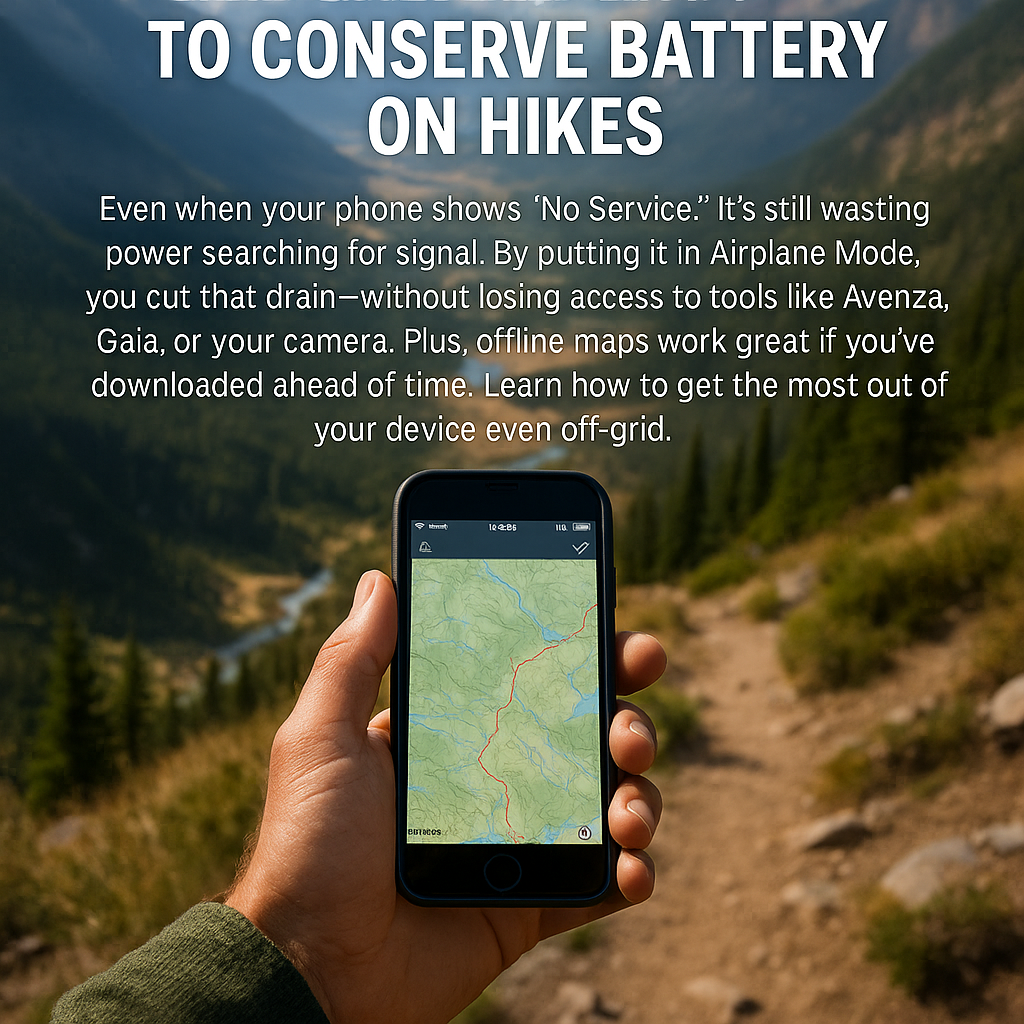
Use Airplane Mode to Conserve Battery on Hikes
You’re five miles deep into a backcountry trail, your phone shows zero bars, and somehow your battery is still dropping faster than your motivation on a steep climb. What gives?
Here’s the thing: even when your phone can’t find a signal, it’s working overtime trying to connect to cell towers that don’t exist. It’s like watching your friend desperately wave at someone who’s clearly ignoring them—painful and pointless.
The solution? Airplane Mode. Yes, that button you usually hit before takeoff can be your secret weapon for all-day battery life on the trail.
Why Your Phone Is Secretly Energy-Hungry
When there’s no cell service, your phone doesn’t just give up and take a nap. Instead, it cranks up the power, scanning harder and harder for any hint of signal. This constant searching is a massive energy drain—sometimes eating 20-30% more battery than normal use.
Think of it like your phone is shouting “CAN YOU HEAR ME NOW?” into the wilderness every few seconds. Spoiler alert: the mountains can’t hear you, and they’re definitely not calling back.
What Airplane Mode Actually Does (And Doesn’t)
Here’s where it gets good: Airplane Mode kills your phone’s cellular, Wi-Fi, and Bluetooth radios—the energy vampires—but keeps everything else running.
What stays on: • GPS (the satellite receiver that makes your maps work) • Camera • Downloaded apps like Gaia GPS, AllTrails, or Avenza Maps • Music, podcasts, and any offline content
What gets shut off: • Cell signal searching • Wi-Fi scanning • Bluetooth connections • Data-hungry apps trying to update
Your phone essentially becomes a really smart, battery-efficient GPS unit with a great camera attached.
How to Actually Use It
Turn it on: Swipe down from the top of your screen (or up from the bottom on iPhones) and tap the airplane icon. On most phones, you can also find it in Settings.
Keep GPS active: After enabling Airplane Mode, go to Settings and turn GPS/Location Services back on. This won’t re-enable cellular—just the satellite receiver you need for navigation.
Test before you go: Try this at home first. Open your map app, switch to Airplane Mode, turn GPS back on, and make sure everything works.
Last month, I tested this on a 12-mile day hike in the Cascades. My buddy’s phone died at mile 8 while mine still had 60% battery at the trailhead—same phone model, same usage, just different settings.
Bonus Battery-Saving Tips
Download your maps before you leave cell service. Most GPS hiking apps let you cache entire trail systems offline, so you’re not draining battery trying to load map tiles mid-hike. Tools like Gaia GPS, Avenza Maps, or any GPX-compatible app work great when preloaded.
Sure, carry a backup power bank, but why drain it unnecessarily? Think of Airplane Mode as your first line of defense against dead phone syndrome.
Also, dim that screen. A bright display in direct sunlight can kill your battery almost as fast as constant signal searching.
Your Next Adventure Awaits
Next time you’re heading into the backcountry, give your phone a break from its futile search for signal. Switch to Airplane Mode, keep that GPS running, and enjoy having navigation and camera power for the entire hike.
Try it on your next trail adventure and see how much longer your phone lasts. Your future self—standing at that epic summit with enough battery left for photos—will thank you.